
Your offer stays in Waiting until your engagement exists
After you sign, an offer whose engagement is not created yet now shows that your signature is recorded instead of saying the engagement is active.
Fixes
A recorded signature is no longer shown as an active engagement
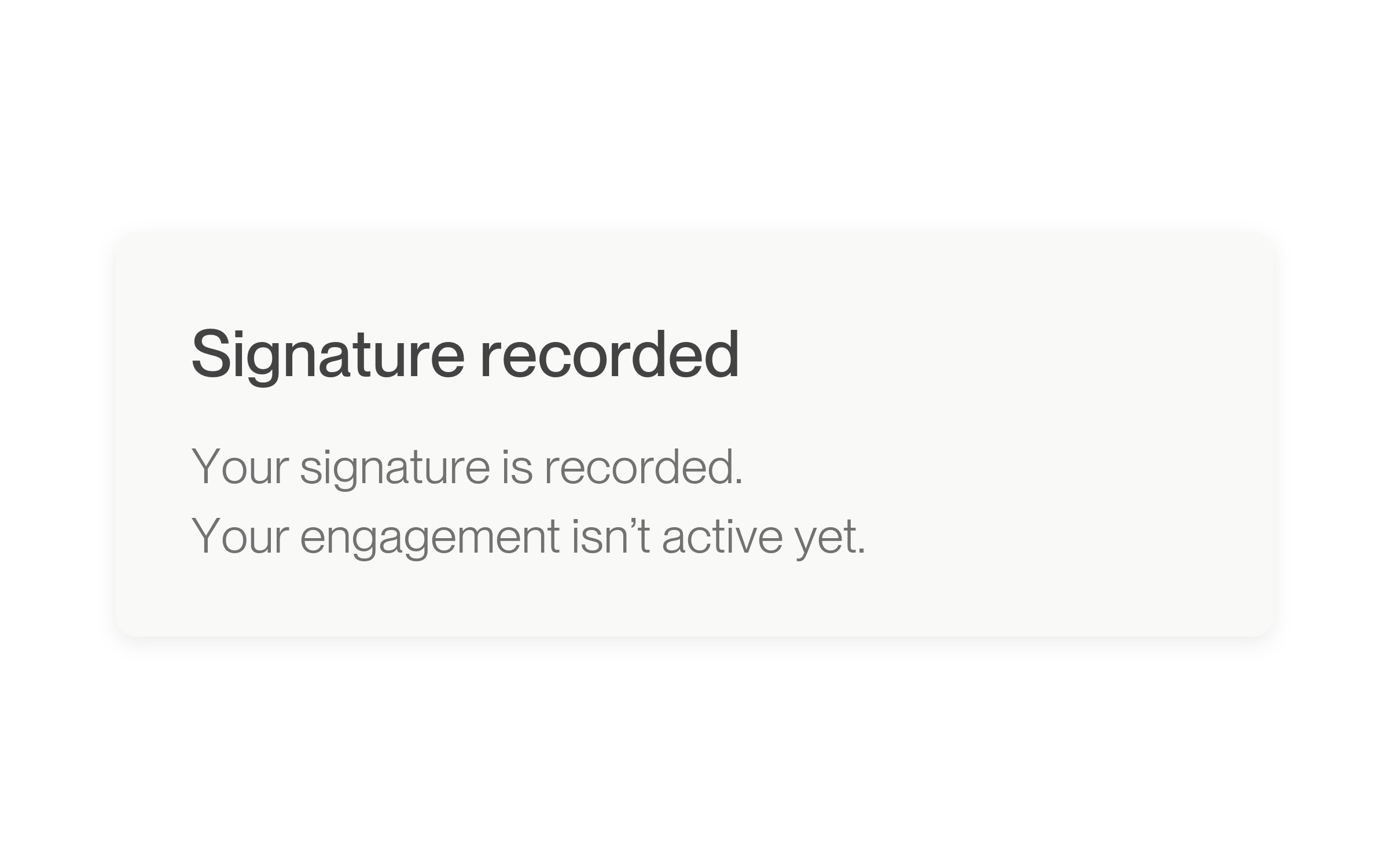
When your signature succeeded before an engagement was created, the offers page could announce an active engagement and ask you to sign again after a reload. Now the confirmation says Signature recorded. If the client still has to finish signing, it says that Lawtrades is waiting for them; otherwise it says your engagement isn’t active yet. The offer stays under Waiting and no longer asks for another signature. No setup is needed.
When signing does create an engagement, you see the same Contract signed! confirmation as before.
How to use it
- Open your received offers in Lawtrades and sign the offer.
- Read the confirmation. Signature recorded means your part is done.
- Select Waiting to find the offer and open View details to see its status.
See the agreed start date on your offers
Offer cards keep the start date you agreed to, before and after signing.
More about this change
The agreed date stays the same
An offer's start date could show one day early before signing, and could be replaced by the signature date afterward. Offer cards now show the start date from the offer as a calendar date, both before and after signing. No setup is needed.
If an offer has no start date, none is shown. Active engagements that started from a direct request have no start date on the card; they now show the date you signed, labeled Signed instead of Started.
How to use it
- Open your received offers in Lawtrades.
- Find the offer card and check the Start date shown.
- Open the offer to review its full terms before you sign.
Keep building your profile after a résumé upload fails
If a résumé upload fails, you can now open your profile editor instead of getting stuck on the upload step.
More about this change
Continue when the upload does not work
When a résumé upload is rejected, or the upload response does not include a usable file link, the upload step now shows Edit profile manually. It opens your profile editor so you can keep filling in your profile. No setup is needed.
A résumé is still required to apply, and this does not fix the cause of a failed upload. You can try the upload again at any time.