
Review candidates in a table and track offers in their own tab
A position’s candidates can now be shown as a table with bulk actions, and lawyers you’ve sent offers to move to an Offers tab.
New features
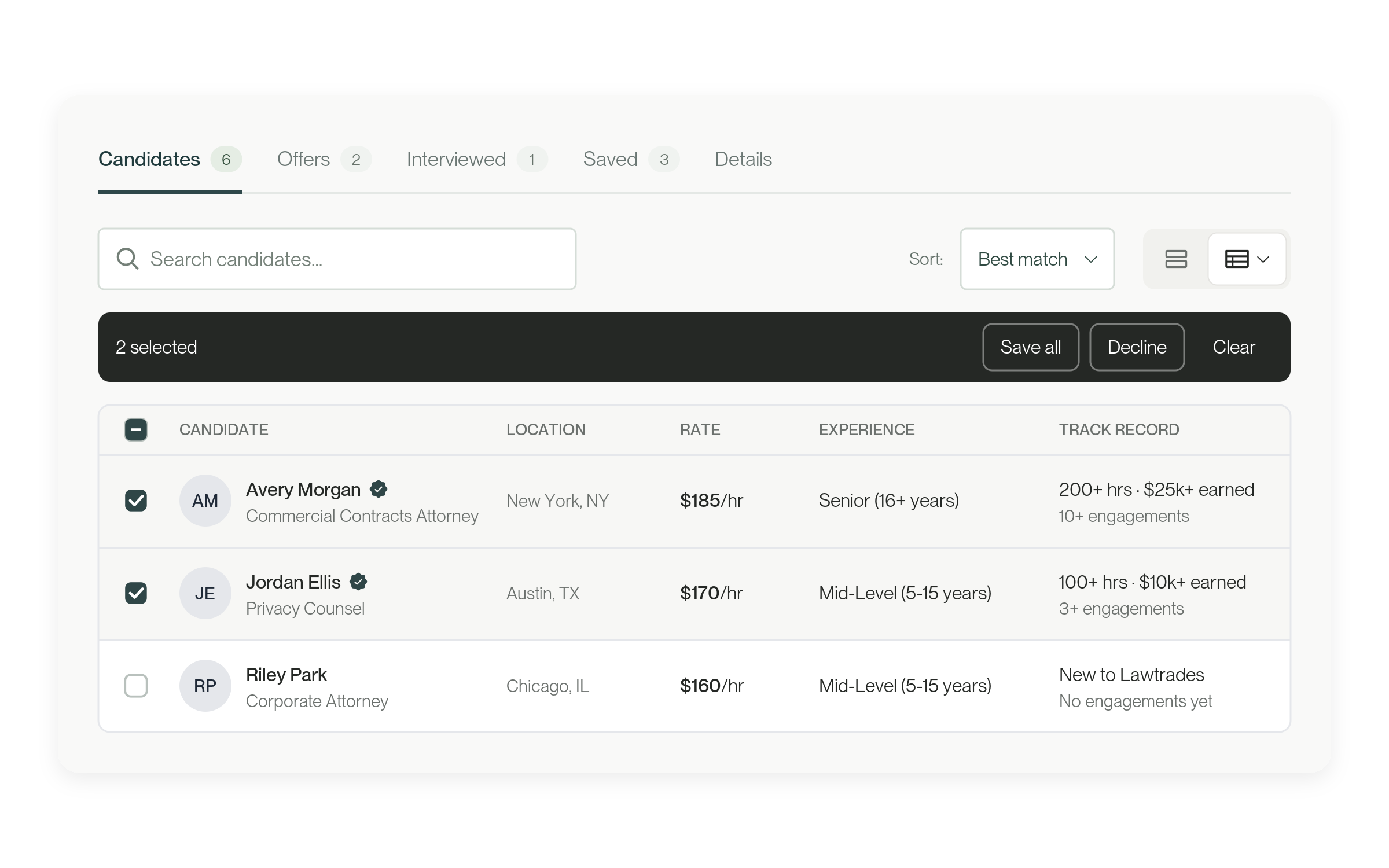
Switch to Table view
On a position’s candidates, use the layout buttons to switch between Cards and Table. Table view fits more candidates on the screen. Open Row spacing to choose Compact, Comfortable or Spacious. Lawtrades remembers your choice.
Tick candidates to act on several at once: Save all saves them, Decline declines them and Clear removes your selection.
The position header shows the teammates on the position, with buttons to Add teammate, Copy link and Edit position. A Details tab shows the position’s details, and the Declined tab appears once you’ve declined someone.
Track offers in one place
When you send a lawyer an offer, they move from Candidates to an Offers tab. Use Show: to list All offers, only Offer sent, or only Offer accepted. If a lawyer declines your offer, they move to Declined.
What to know
The Offers tab appears once a position has offers. Startup Projects in Lawtrades Agent are unchanged.
Improvements
Turn off worklog suggestions, and choose how Insights opens
Talent can stop the Agent suggestion that appears after saving time, and Insights now opens on This month unless you set a different default.
More about this change
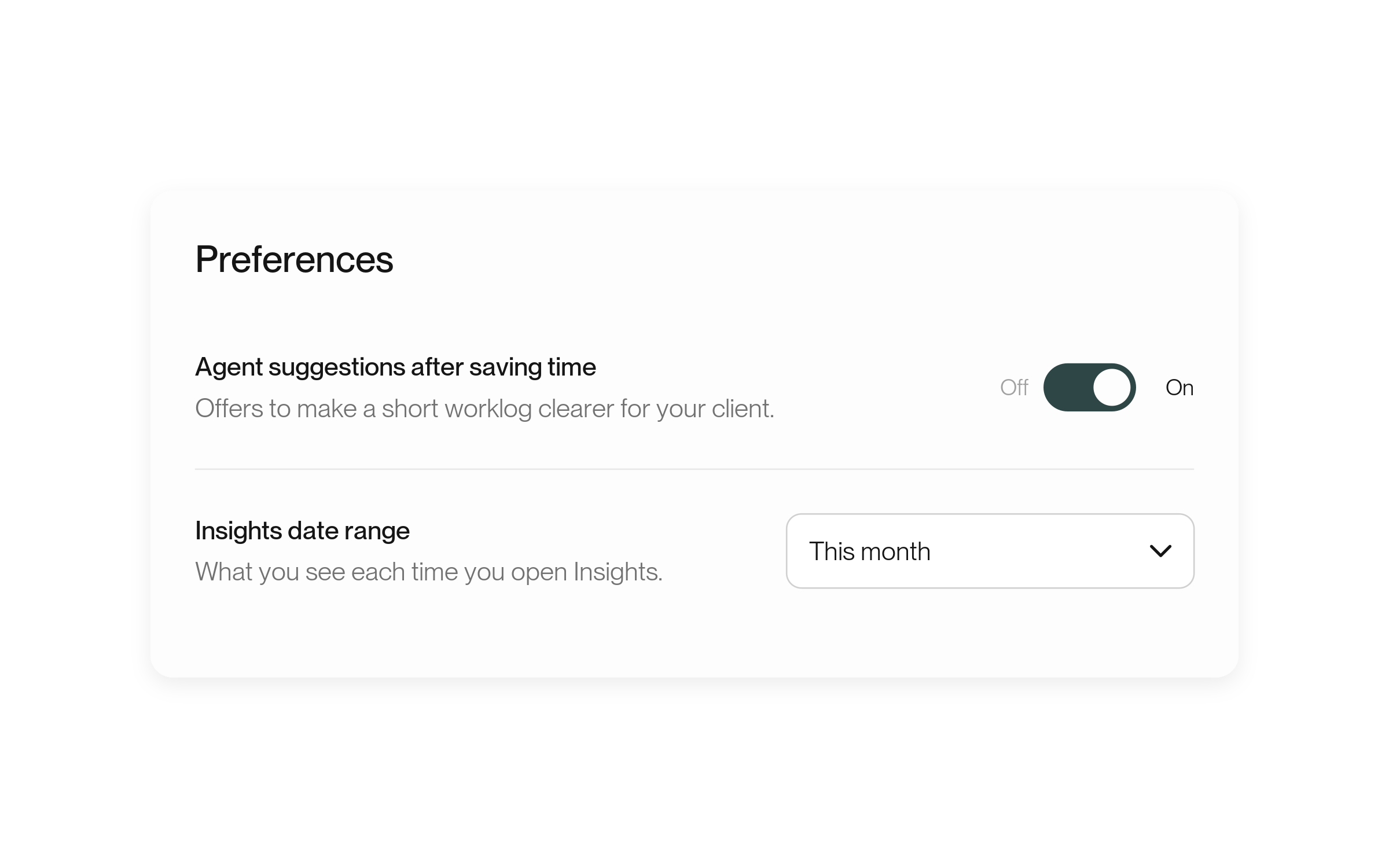
Stop worklog suggestions
After you save time, Lawtrades Agent may offer to make the worklog clearer for your client with Improve with Agent. If you don’t want these suggestions, select Don't ask again. Your worklog is already saved.
To turn suggestions back on, open Settings, go to Preferences and switch on Agent suggestions after saving time.
Choose how Insights opens
Insights now opens on This month. To start on a different range, choose it in the date menu and select Set as default. Talent can also change this in Settings under Preferences with Insights date range.
Fixes
Job links stay intact when you share them
Copied job links and job links in emails now use a simple address that doesn’t break when it’s pasted into Slack, email or other apps.
More about this change
Links that survive copy and paste
Job titles with characters like &, / or $ could cut a job link short when it was pasted elsewhere. Job links now use only letters, numbers and hyphens, followed by the job’s number. Older links still open the right job. No setup is needed.