
Hire multiple lawyers for one Project
2 new features, 5 improvements and 3 fixes this week.
Authored product illustration using example Project data: separate attorney workspaces with the verified Hiring settings component revealed in front.
Video couldn’t load. Try again.
New features
Hire multiple lawyers for one Project
Hire more than one lawyer for a small-business Project, with a separate workspace for each hire.
Hire a team from one scope
A small-business Project can now support more than one lawyer. The Project keeps the shared hiring scope and candidate list together, while each hire has a separate Project Workspace.
Use this when the same scope calls for more than one lawyer. For example, you may want two lawyers contributing to the same body of work while keeping each engagement’s terms and activity separate.
Why we added it
A single hiring scope should not limit you to one engagement. This gives you one place to recruit, then a clear place to work with each lawyer. The Hires tab connects the two: the overall Project and the individual workspaces.
Open the right workspace
Each hire has its own compensation and workspace. A workspace can appear while setup is still in progress, so check its status before assuming the engagement is active.
Stop recruiting without ending the work
Closing hiring stops new recruiting; it does not cancel existing offers or end active engagements. Where a linked pending hire can continue, use the action shown for that candidate. Do not start a second request to resume an existing one.
If the setting is unavailable
This applies to eligible small-business Projects and accounts with the required access. If Hiring settings is missing or a change fails, contact help@lawtrades.com with the Project name and the message shown.
Download an agreement before signing
Download the agreement from your signing preview and review it as a PDF.
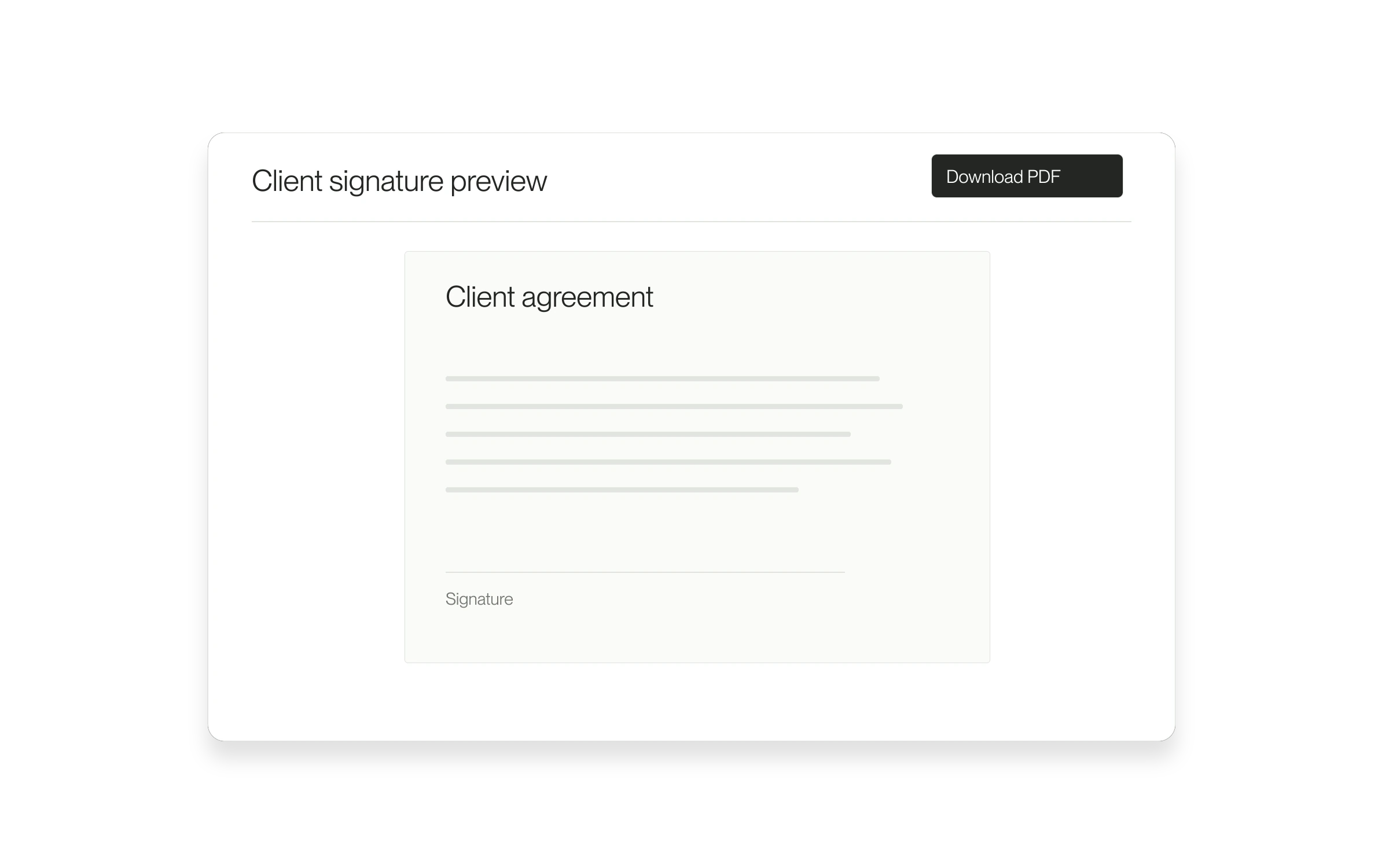
Review the agreement outside the signing window
The standard client signing preview can now download the agreement as a PDF before you sign. Use it when you want to read the document at your own pace or keep a copy of what you are reviewing.
The problem it solves
An embedded signing preview is useful for completing the process, but you may also need the document outside that window. Download PDF gives you that copy without requiring a signature first.
How to use it
- Open the signing step of your dashboard offer.
- Find Client signature preview. If the preview is not loaded, select Load preview.
- Wait until Download PDF is available, then select it.
- Open the downloaded PDF and review the agreement. Return to the signing flow when you are ready to continue.
Know which copy you have
Downloading does not sign the agreement. A copy saved before signing is not proof of a completed signature. This feature does not create a general archive of signed documents.
Where it is available
The control appears for eligible accounts in the standard self-signing preview. External agreements, custom contracts, delegated signatures and already-signed agreements use different flows. If the download fails, retry; if it continues to fail, contact support with the position name and error.
Improvements
Sign back in without leaving your conversation
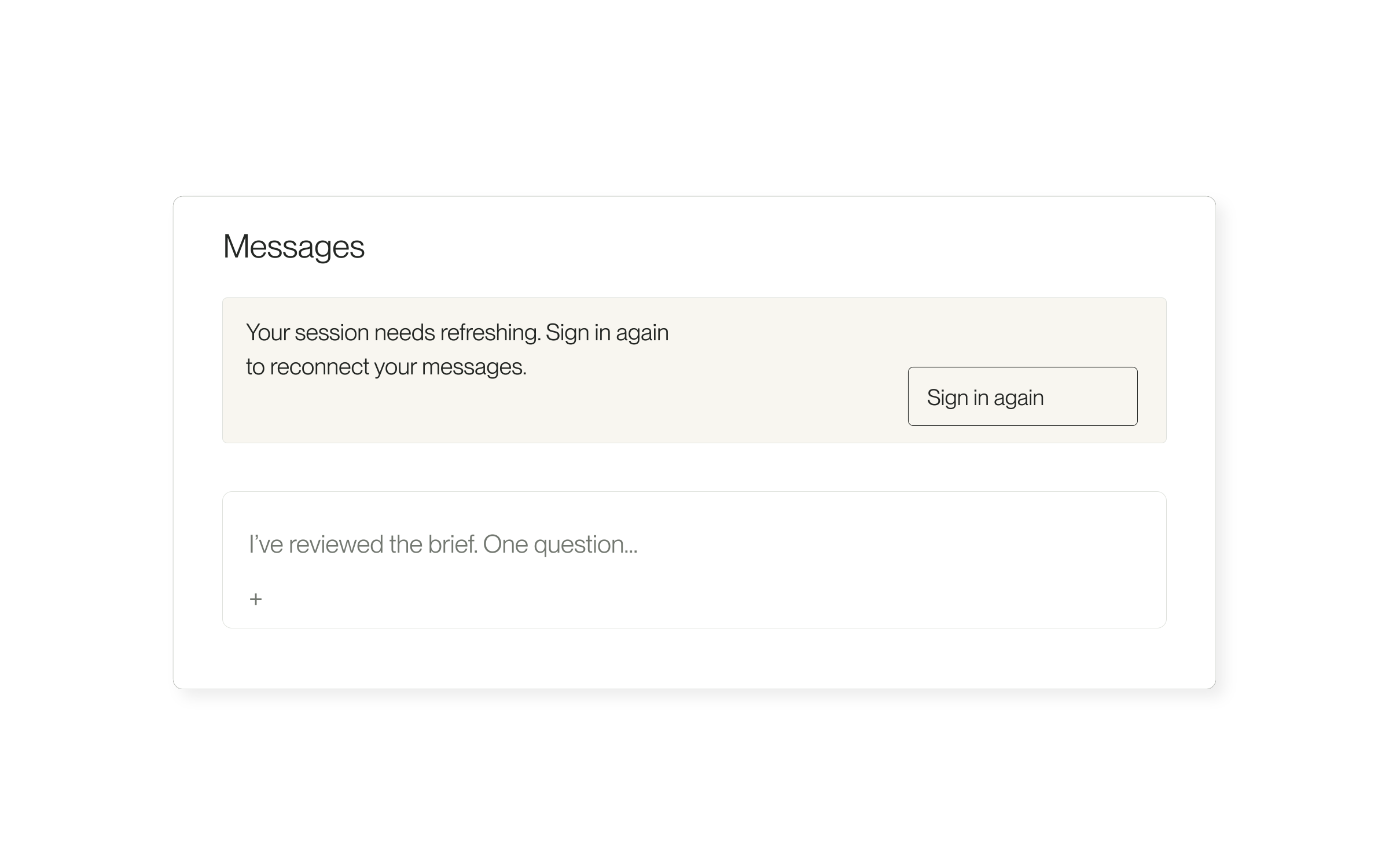
Reconnect Project messages from the open page when your session expires, then review your draft before sending.
More about this change
A clear way back to your messages
If your sign-in session expires while you are using Project messages in Lawtrades Agent, a Sign in again notice now lets you reconnect from the open page. Message sending pauses until your session is restored.
If a send fails because the session expired or access was denied, the conversation can return unsent text and attachments to an empty composer. If you have already started a newer draft, that draft is kept and the failed message stays visibly marked instead. Messages are not automatically resent.
Reconnect and check your draft
If the page says You no longer have access to this conversation, return to your Projects and open an available conversation. Signing in again does not grant access to a conversation you no longer have permission to use. Contact help@lawtrades.com if you need help.
Skip a second proposal for the same role
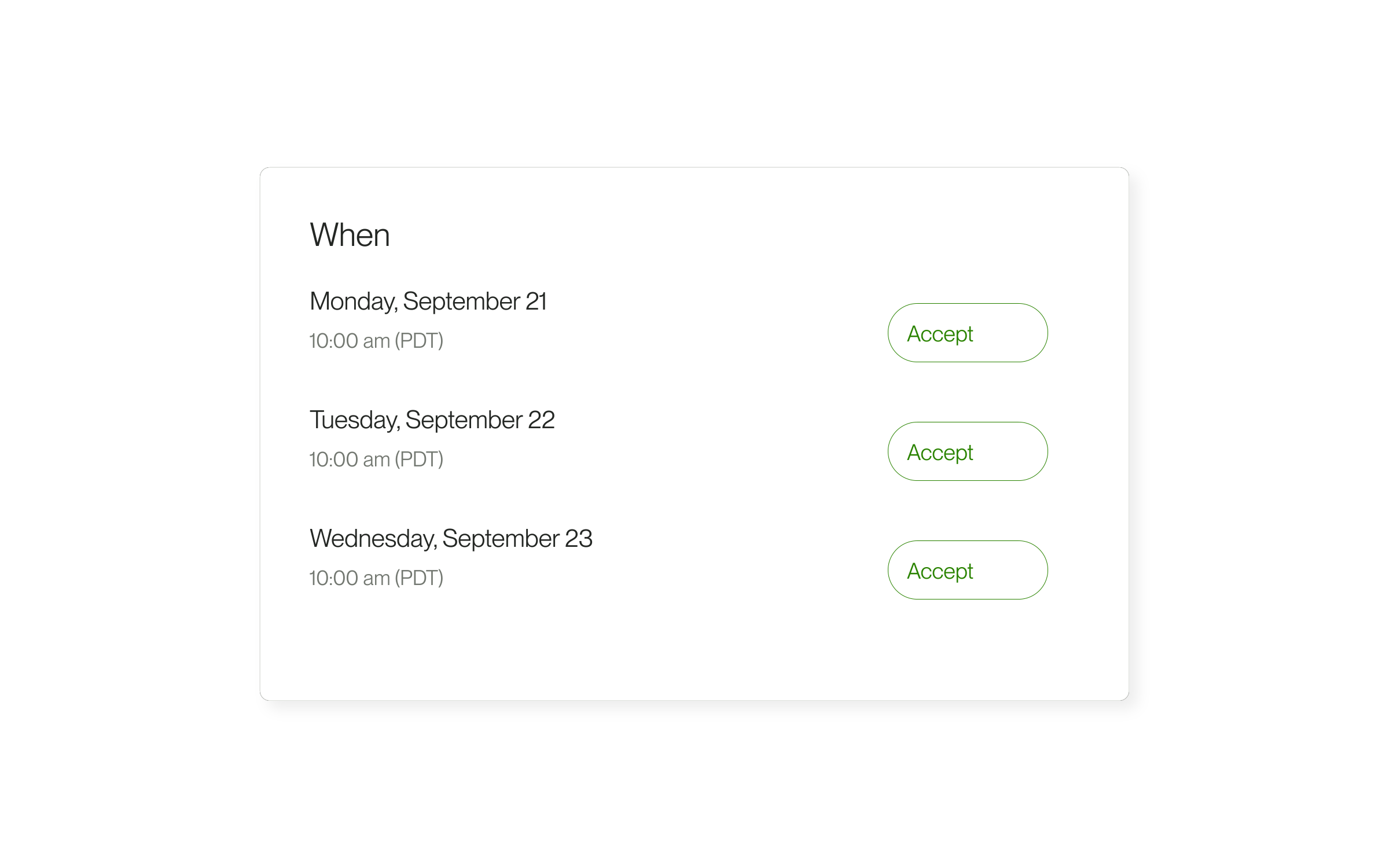
Eligible interview requests recognize an existing application or recorded proposal, so you can respond without entering it again.
More about this change
Respond with the proposal already on file
For eligible marketplace interview invitations started in Lawtrades Agent, an existing application for the same role no longer triggers another rate or fee submission. A proposal you submitted or an Operations quote for that role can also satisfy this step when it has a valid rate greater than zero.
This helps you respond to an interview without repeating compensation details already recorded for the role. A rate shown on your profile alone does not count as a submitted proposal.
Review and respond to the invitation
The extra proposal step depends on the invitation and what is already recorded for that role. This does not change your existing proposal, automatically accept an interview, or apply to small-business Project interviews.
Open the right Project from your email
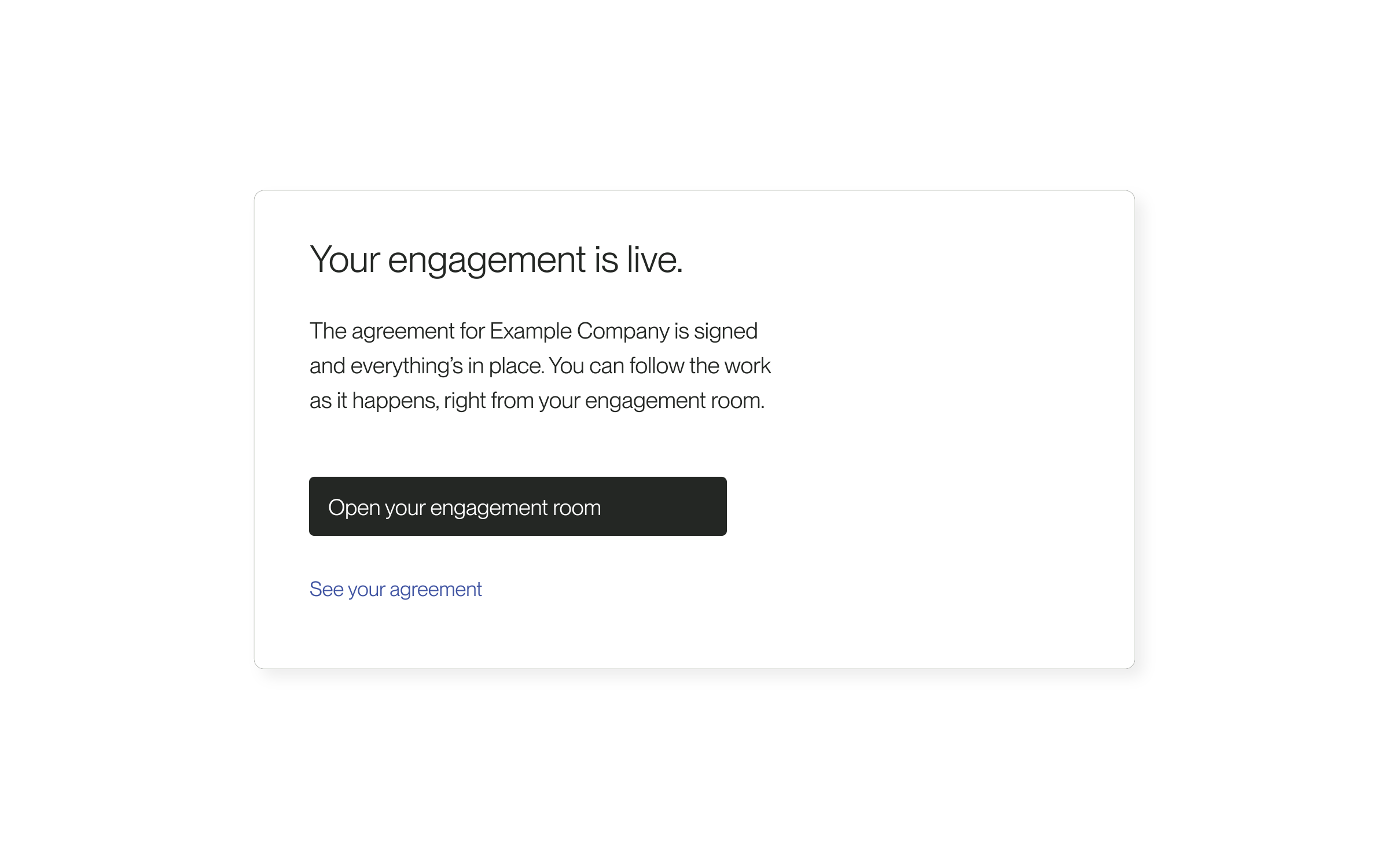
Return to the matching Project workspace from an engagement email, including supported older links.
More about this change
Get back to the work in the email
Engagement emails now link to the matching hire’s workspace. Older engagement-room links also open the matching Project and its Messages tab after you sign in. Pre-hire message links open the separate Messages view.
Use this when you are returning to an engagement from your inbox, especially when one hiring Project has several hires. The link is matched to the engagement rather than choosing another hire’s workspace.
Open your engagement
Older emails are not rewritten. If a link cannot be matched to an available Project, open Lawtrades Agent and choose the Project directly. Contact help@lawtrades.com if you still cannot reach it.
Return to a hire’s Project and reopen recruiting
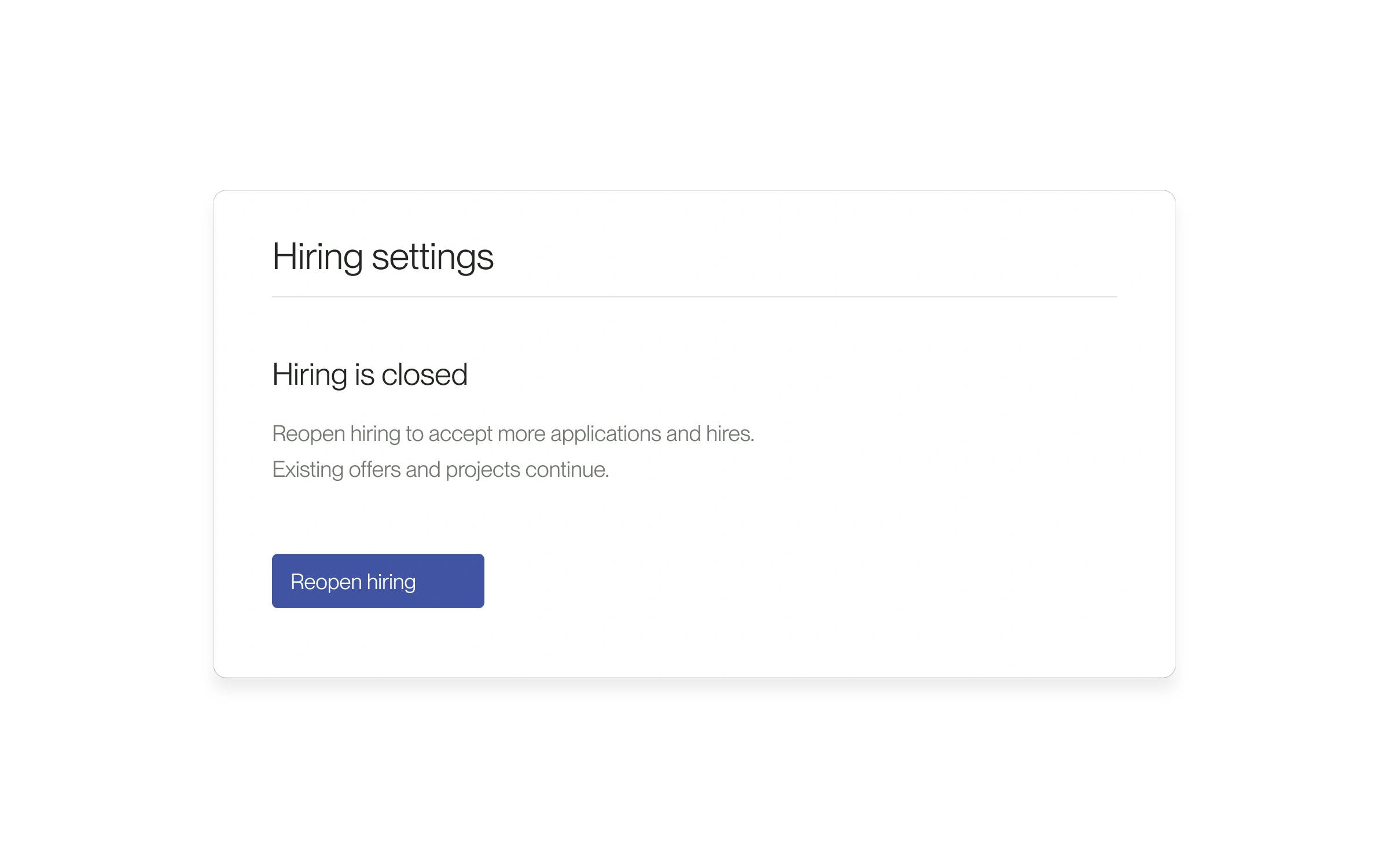
Open an existing workspace from the candidate list, with a direct route to Hiring settings when recruiting is closed.
More about this change
Pick up work with an existing hire
Eligible candidate cards now show Open project when that lawyer already has a matching workspace. The Hires list uses the same label, so you can return to work already underway without starting another hire.
This is useful when you are managing several lawyers under one hiring scope. Each workspace keeps that hire’s work separate. Cancelled, declined, or expired hire requests do not qualify for this shortcut.
Reopen hiring when you need another lawyer
You can also open Hiring settings directly from the hiring Project. Existing offers and Projects continue when recruiting closes; reopening does not complete a new hire.
If an action is missing
These controls depend on your account, Project, and candidate status. Open hiring settings is offered for the closed-hiring error; other errors need their own resolution. If the Project will not load, use its retry action or contact help@lawtrades.com.
Attach ZIP archives and business files
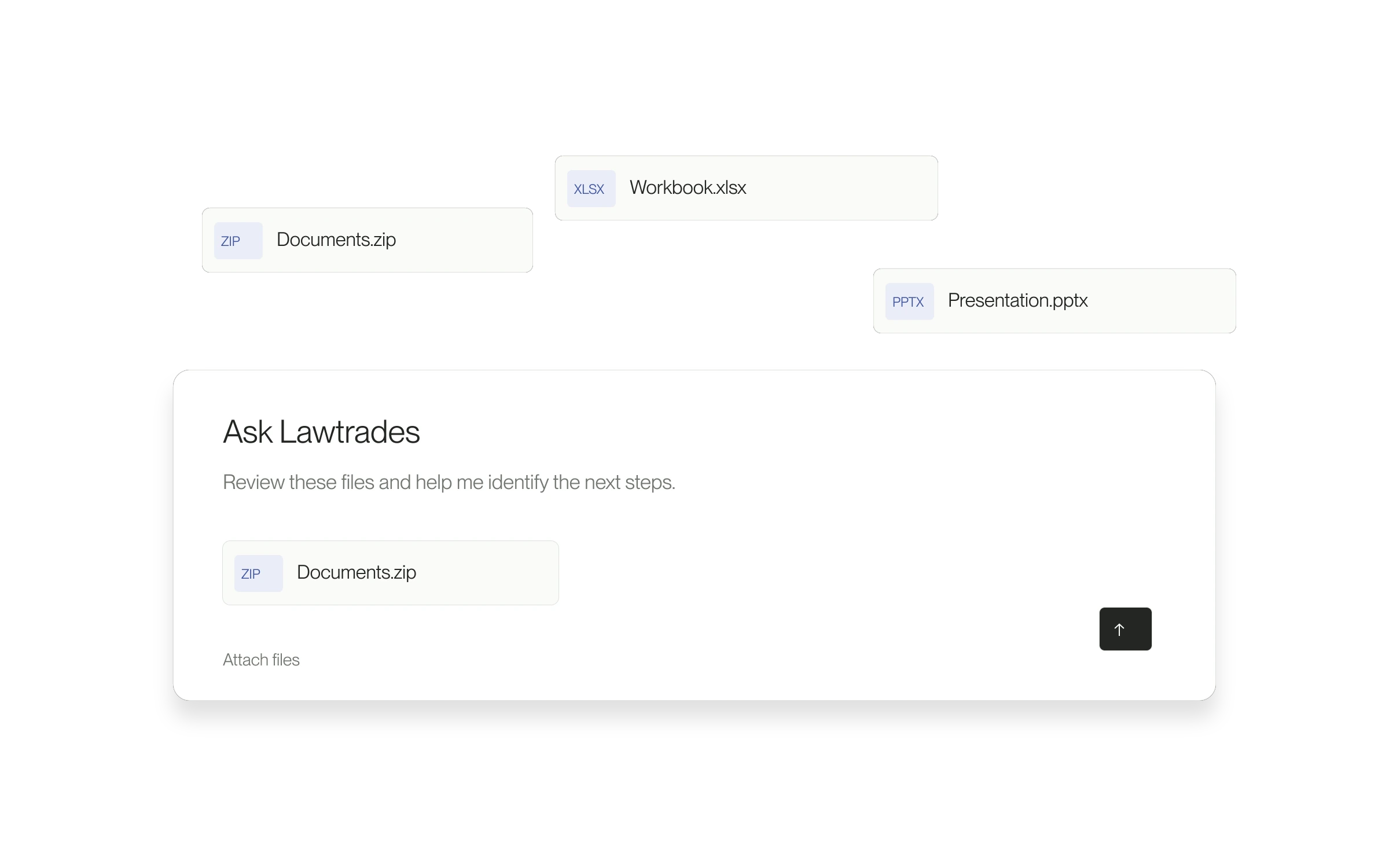
Agent’s attachment picker now accepts ZIP archives and more business file formats.
More about this change
Bring more of your working files into Agent
Agent’s attachment picker accepts spreadsheets, presentations, email files and ZIP archives alongside documents and images. Each file must be 10 MB or smaller.
When this is useful
Use attachments when the question depends on material you already have: a document to review, a spreadsheet to discuss, or a presentation that provides background. Add a clear request so Agent knows what to focus on.
The problem it solves
Relevant context is not always a PDF. Accepting more common business formats lets you bring the file you have into the conversation, subject to its size and readability.
Supported does not always mean readable
ZIP files are shared as archives; this update does not automatically unpack them. Upload acceptance does not guarantee that Agent can read every part of a file. If it cannot, use a readable PDF or paste the relevant text. To share a document with a lawyer or client, use Project Messages instead.
Fixes
Retry an interview request without starting over
Keep your entered details after a send error, and retry the same request from the open form.
More about this change
Keep the details you already entered
If sending an interview request fails, the form keeps your details and makes Send Request available again. Retrying unchanged details from that same open form returns the existing request if it was already saved.
This helps when a connection drops after you press Send Request and you cannot tell whether the request went through. You can recover without retyping your introduction or rebuilding the proposed times.
Send or retry a request
The work start date appears for supported dashboard roles that do not already have one. It is not requested for small-business Projects.
Before opening another request
The retry protection applies to the same open request form. Reloading the page or starting a new request can create a separate request. Check Interviews first if you are unsure what was saved. If you still cannot send, contact help@lawtrades.com with the error and position name.
Clearer confirmation after client signing
The hiring flow waits for the client agreement to be complete before showing its signed confirmation.
More about this change
Your signing step and the completed agreement
Completing your DocuSign step does not always mean every required signature is complete. The hiring flow now checks the client agreement’s completion before showing the signed confirmation.
This corrects a case where your completed step could make the agreement appear signed while a countersignature was still pending. There is no setting to turn on.
What to look for
The offer-sent screen can still appear while the client agreement awaits completion. The separate signed confirmation now waits for that completion.
Where this applies
This fix applies to the client DocuSign flow in the dashboard hiring process. External or custom agreements follow their own process. It does not change the agreement’s terms or mean the candidate has accepted the offer.
Keep hiring links tied to their Project
Shared hourly recommendations stay connected to the intended hiring Project.
More about this change
Keep the recommendation with its Project
Shared hourly hiring links now check both the recommended lawyer and the hiring Project before you continue. Use this when you receive a lawyer recommendation and already have one or more Projects in Lawtrades.
The problem it solves
When several Projects are open, a recommendation needs the right context. Project-specific links retain that connection. Older links use an eligible selected Project, or the only eligible open Project, instead of guessing among several.
How to use it
- Open the recommendation link and sign in with the client account connected to the Project.
- Review the lawyer and any Project context shown.
- If Lawtrades cannot identify an eligible Project, open the hiring Project you intend to use, then retry the link.
- Check that you are continuing with the intended Project before reviewing the remaining hiring steps.
If you cannot continue
The Project must be eligible and your account must have access. An expired or unavailable link needs support; opening a link does not complete a hire. Fixed-fee recommendations use a separate flow.